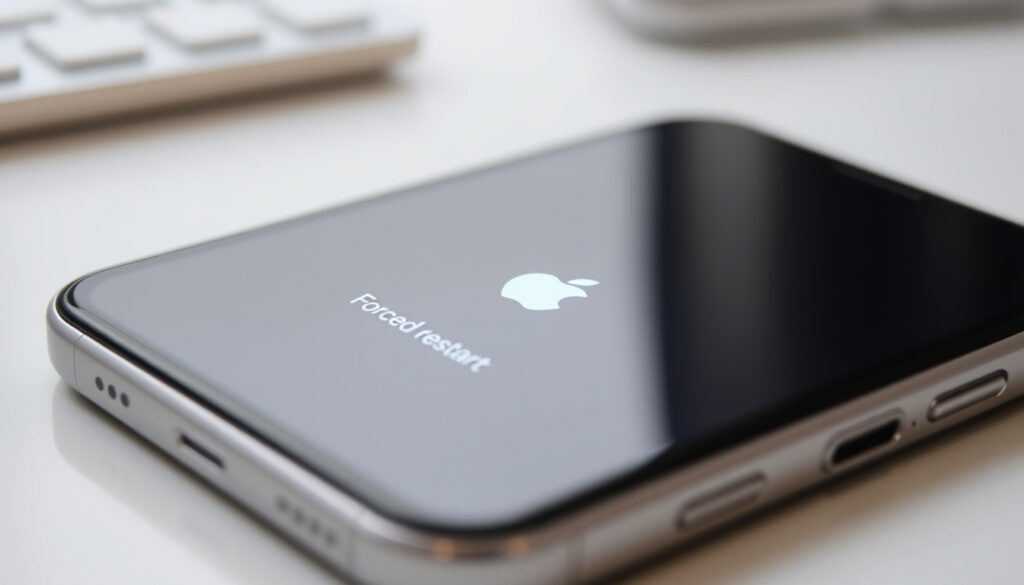
How to Force Restart iPhone (All Models: 13, 14, 15, X, 16, 17)
You know the panic: you tap, swipe, hold — and the screen just stares back, frozen and useless. The force restart is the only fix that works when your iPhone stops responding entirely, and this guide covers the exact button sequence for every model, what to try if your screen is black or buttons are broken, and what to do when even the force restart won’t cooperate.
Device affected: All iPhone models ·
Force restart duration: ~10 seconds ·
Data loss risk: None ·
Common trigger: Frozen or unresponsive screen ·
Apple recommended: Yes
Quick snapshot
- Forces device to reboot without data loss (Apple Support)
- Used when screen is frozen or unresponsive (Apple Support)
- Uses hardware buttons only (Apple Support)
- iPhone frozen or stuck (Apple Support)
- Touch screen not responding (Apple Support)
- App won’t close normally (Apple Support)
- iPhone 17, 16, 15, 14, 13, 12, 11, X, SE (Apple Support)
- iPhone 8, 7, 6, and earlier (Apple Support)
- Does not delete personal data (Apple Support)
- Does not revert settings (Apple Support)
- Safe to perform multiple times (Apple Communities)
Five key facts that cover everything you need to know about the procedure in one glance.
| Fact | Value |
|---|---|
| Force restart method | Volume Up + Volume Down + Side button (Face ID models) |
| Alternative method | Home + Side button (Home button models) |
| Duration | Hold until Apple logo appears (~10 seconds) |
| Data loss | None |
| Apple support reference | Apple Support |
Force restart is a hardware-level reboot built into every iPhone. It bypasses the operating system entirely, which is exactly why it works when iOS is frozen — and why it never touches your photos, apps, or settings.
How do you force restart an unresponsive iPhone?
The official method from Apple Support (tier-1 source) is model-specific, but the core idea is the same: use hardware buttons to simulate a power cycle that the software can’t block. Here are the exact sequences for each generation.
- Press and quickly release the Volume Up button.
- Press and quickly release the Volume Down button.
- Press and hold the Side button until the Apple logo appears — this can take up to 20 seconds.
Force restart iPhone with Face ID
- Press and quickly release the Volume Up button.
- Press and quickly release the Volume Down button.
- Press and hold the Side button until the Apple logo appears — this can take up to 20 seconds according to Apple Communities (user reports).
This works on iPhone X, XS, XR, 11, 12, 13, 14, 15, 16, 17 series, and iPhone SE (2nd and 3rd generation), as confirmed by Apple Support.
Force restart iPhone with Home button
- For iPhone 7 and iPhone 7 Plus: press and hold both the Volume Down button and the Side button until the Apple logo appears (Apple Support).
- For iPhone 6s, iPhone SE (1st generation), and earlier: press and hold both the Home button and the Side (or Top) button until the Apple logo appears (Apple Support).
- For iPhone 6, 8, and iPhone SE (1st gen): same Home + Side/Top combo as above.
Force restart iPhone SE (2nd/3rd gen)
These models use the Face ID sequence: Volume Up, Volume Down, then Side button — despite having a physical Home button, as documented by Apple Support.
The pattern: every iPhone made since 2017 uses the three-button dance. The only exceptions are the iPhone 7 line (Volume Down + Side) and anything older than iPhone 6s (Home + Side/Top).
For more iPhone comparisons, see our iPhone 16e vs iPhone 16: Which Should You Buy guide.
What is a hard restart and how is it different from a regular restart?
A hard restart — Apple calls it a force restart — is a hardware-level reboot triggered by physical buttons, not through the software’s power-off slider. Apple Support (tier-1 source) explains that you use it when the screen is frozen or the device is unresponsive to touch input.
When to use a hard restart
- When the touch screen does not respond to taps or swipes (Apple Support).
- When the device is stuck on a frozen app or a black screen.
- When the normal power-off slider never appears.
For situations where the iPhone is still responsive, Apple Support advises using a normal shutdown: drag the slider to power off and wait 30 seconds before turning it back on.
Difference between hard restart and reset
There is a critical distinction that many users confuse. A force restart does not delete any data, settings, or content — it is a simple reboot. By contrast, “Erase All Content and Settings” wipes the device clean. The terms are not interchangeable. Apple Support (tier-1 source) explicitly states that force restart “does not erase your data.”
The implication: if you’re trying to clear a frozen screen, the force restart is your tool. If you’re trying to factory reset to sell or fix a software issue, you need the separate Erase All Content path in Settings.
How to force restart specific iPhone models (iPhone 13, 14, 15, X, etc.)
Here is the model-by-model breakdown so you can find your exact device without guessing.
iPhone 14 / 15 / 16 / 17 series
All of these use the Face ID sequence: Volume Up, Volume Down, then hold Side button until Apple logo. Apple Support (tier-1 source) confirms this works for every model with a notch or Dynamic Island, regardless of iOS version.
Some users on Apple Communities (user reports) note that the logo may take 15–20 seconds on the iPhone 14 Pro — patience is key.
iPhone 13 series
Same Face ID sequence. Apple Support does not differentiate between 13, 13 mini, 13 Pro, or 13 Pro Max — all use the same three-button combo.
iPhone X and XS/XR
These were the first generation to adopt the Face ID sequence. Apple Support (tier-1 source) lists them alongside the iPhone 8, which is why many guides bundle them together.
iPhone 8 and earlier
iPhone 8: Face ID sequence (Volume Up, Volume Down, Side). iPhone 7: Volume Down + Side. iPhone 6s and earlier: Home + Side/Top. The breakdown is consistent with iDownloadBlog (tech publication) and matches Apple’s official documentation.
The most common mistake is lifting the Side button too early. If you see the power-off slider, you didn’t hold long enough. iDownloadBlog (tech publication) notes that the Apple logo may take several seconds after the slider screen passes — keep holding through the dark period.
How to force restart an iPhone without using the power button or when the screen is frozen?
If the Side or Top button is broken, or the screen is so frozen that you cannot confirm button presses, you still have options — though they have real limits.
Using AssistiveTouch to simulate button presses
Enable AssistiveTouch in Settings > Accessibility > Touch > AssistiveTouch. This places a virtual button on screen. From there, go to Device > More > Restart. Apple Support (tier-1 source) confirms this works when the screen is partially responsive but the physical buttons are unreliable.
Using a computer (iTunes/Finder)
If the screen is completely frozen and the device will not respond to any button combination, force restart via a computer is not possible. The only computer-path for an unresponsive device is recovery mode — which requires entering recovery mode first via buttons, then connecting to Apple Support (tier-1 source) guidance.
When to seek hardware repair
If none of the above works and the device has been charging for at least 15–30 minutes as recommended by YouTube tutorial (user guide), the problem is likely physical. A force restart cannot fix liquid damage, a dead battery that won’t hold charge, or broken button assemblies.
The catch: AssistiveTouch only helps if the screen still detects touch input. If it is completely dark or unresponsive, software-based alternatives are off the table — and hardware repair becomes the only viable path.
What to do if your iPhone still won’t restart after force restart?
Even a correctly performed force restart can fail if the underlying issue is not software-related. Here is the step-by-step troubleshooting path.
Check for physical damage
Inspect the device for visible cracks, liquid damage indicators (which turn red if wet), or swollen battery bulging. Apple Support (tier-1 source) notes that force restart cannot overcome hardware faults — if the logic board or battery is damaged, no button combination will help.
Try recovery mode
Connect the iPhone to a computer with a USB cable. Enter recovery mode by performing the same force restart sequence but continuing to hold the Side button past the Apple logo until the computer detects the device in recovery state. Apple Support (tier-1 source) describes this as a separate procedure that can reinstall iOS without data loss.
Contact Apple Support
If recovery mode fails or the device will not connect to a computer, Apple Support (tier-1 source) directs users to schedule a service appointment. Hardware failures — especially on newer models with soldered storage — require professional tools.
Why this matters: a force restart fails for two reasons — timing (you didn’t hold the Side button long enough) or hardware (the device has physical damage). For the first, try again with a 20-second hold. For the second, no amount of rebooting will fix it, and the sooner you get a diagnostic, the better your chance of a repair rather than a replacement.
“If your iPhone is frozen or unresponsive, you should use a force restart instead of the normal restart slider.”
— Apple Support (tier-1 source)
“The Apple logo can take as long as 30 seconds to appear during a force restart on some frozen devices.”
— Apple Communities (user report)
“If the screen won’t respond at all, charging the device for 15–30 minutes before attempting a force restart can rule out a dead battery.”
For the average iPhone owner who encounters a frozen screen a few times a year, the force restart is the simplest, safest fix available. The evidence from Apple Support and iDownloadBlog consistently points to one conclusion: it works, it’s safe, and it doesn’t touch your data. For those whose buttons are broken or whose device has physical damage, the choice is no longer about restarting — it is about acknowledging that the hardware needs professional attention.
Confirmed facts
- Force restart does not erase data (Apple Support)
- Button combination for Face ID models is Volume Up, Volume Down, Side button (Apple Support)
- Force restart is safe for the device when performed correctly (Apple Support)
What’s unclear
- Exact button timing for older models with top button may vary slightly (Apple Support)
- If device has physical damage, force restart may be ineffective (Apple Support)
support.apple.com, manuals.plus, youtube.com, support.apple.com, gbyte.com
Frequently asked questions
Does force restart delete my photos or apps?
No. A force restart is a hardware-level reboot that does not alter your data, settings, or installed apps. Apple Support (tier-1 source) explicitly states that it “does not erase your data.”
Can a force restart damage the iPhone hardware?
No. The force restart is designed into the iPhone’s boot logic and is safe to perform repeatedly. Apple Support (tier-1 source) recommends it as the standard fix for frozen devices.
How often can I safely force restart my iPhone?
As often as needed. There are no usage limits or cumulative effects from force restarting, according to Apple Communities (user discussions). The procedure is identical to a normal reboot at the hardware level.
Will force restart fix a black screen?
If the iPhone is on and responding but the display is not lighting up, a force restart can sometimes restore the display driver. However, if the screen is completely dead due to hardware failure, force restart will not help. Apple Support (tier-1 source) advises connecting to a computer as the next step if the screen stays black.
What is the difference between force restart and recovery mode?
Force restart reboots the device without connecting to a computer. Recovery mode, by contrast, requires a USB connection and a computer running iTunes or Finder, and can reinstall iOS. Apple Support (tier-1 source) describes recovery mode as the step to take after a force restart fails.
Why does my iPhone not respond to force restart?
The most common reason is timing: the Side button must be held past the power-off slider screen — sometimes for up to 20 seconds. If the device has physical damage (broken buttons, dead battery, liquid exposure), force restart may not work. Apple Communities (user reports) suggest trying a second time with a longer hold.
How to force restart an iPhone with a broken volume button?
If one of the volume buttons is broken, the three-button sequence may not register. The only alternative is to use AssistiveTouch (if the screen is responsive) or connect to a computer to attempt recovery mode. Apple Support (tier-1 source) recommends hardware repair for broken buttons.
For more budget-friendly smartphone options, see our Galaxy S20 FE to Buy in Ireland 2026: Price, Specs & Value guide.
More related posts
 Used Toyota Prius for Sale in Ireland: Prices & Tips
 RV Parks Near Me in Ireland: Free & Paid Guide
 Interview with the Vampire (TV Series) – Cast, Seasons, Where to Watch
 Charlie and the Chocolate Factory: 1971 vs 2005 Comparison
 Best Api con Pastel Near Me: Bolivian Breakfast Guide
 How Much Is Health Insurance in Ireland? 2025 Monthly Costs
 EMT Jobs Near Me: Salary, Training & Career Paths in Ireland
 America the Beautiful Lyrics: Story and Meaning